Microsoft 365 Apps for Enterprise consists of client software applications and Connected Experiences designed to enable users to create, communicate, and collaborate more effectively. Working with others on a document stored on OneDrive or translating the contents of a Word document into a different language are examples of connected experiences.
Connected experiences include experiences that analyse content, such as Editor in Word, experiences that download online content, such as PowerPoint QuickStarter, and other connected experiences, such as document co-authoring and online file storage. It also includes additional optional connected experiences, such as inserting an online video into a PowerPoint presentation or the 3D Maps feature in Excel, which uses Bing.
If you disable “Allow the use of connected experiences in Office” policy setting, nearly all connected experiences will be turned off. However, limited Office functionality will remain available, such as synching a mailbox in Outlook. Essential services, such as the licensing service that confirms that you’re properly licensed to use Office, will also remain available.
Now we will explore how to disable the connected experience by configuring the necessary settings through Microsoft Intune.
Configurations in Microsoft Intune
Sign in to the Microsoft Endpoint Manager admin center.
Go to Apps > Managed Apps > Policies for Microsoft 365 apps.
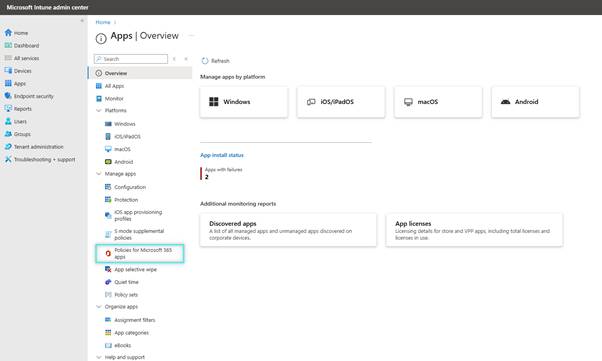
On Policy Configurations window, select Create.

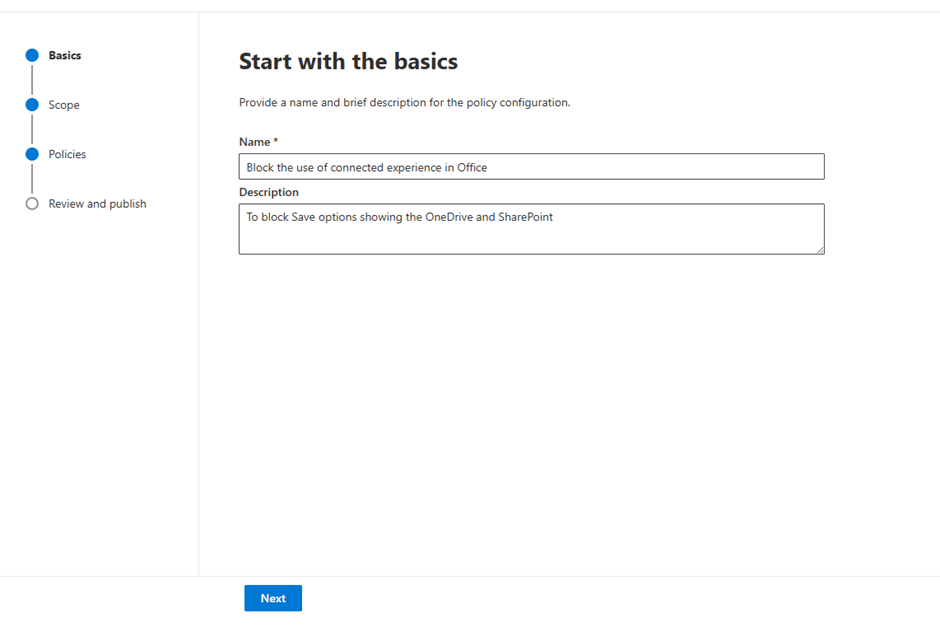
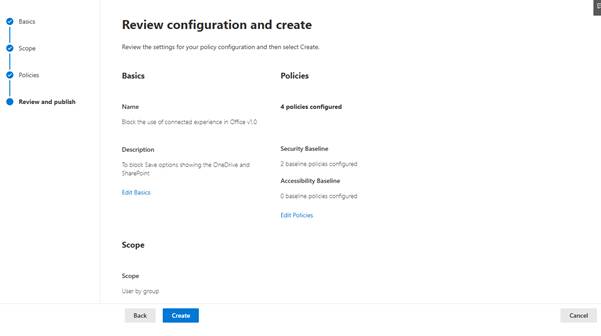
On the Basics tab, specify the name of the profile like Block the use of connected experience in Office, and add a profile description. Click Next.
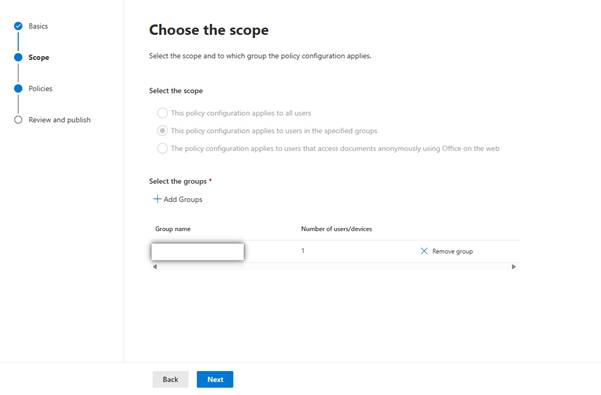
On the Choose the scope tab, select the appropriate user groups. Click Next.
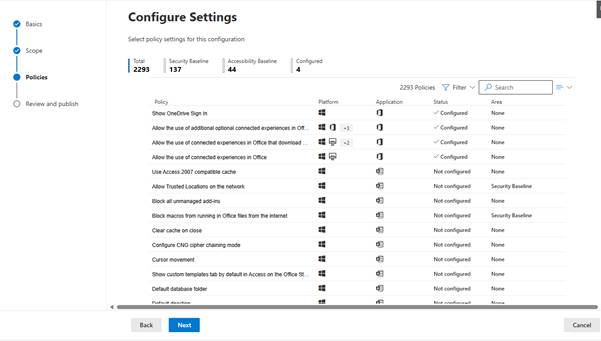
On the Configuration Setting tab, select the below settings and configure as mentioned. Click Next.
| Settings Properties | Value |
| Allow the use of connected experiences in Office | Disabled |
| Allow the use of additional optional connected experiences in Office | Disabled |
| Allow the use of connected experiences in Office that download online content | Disabled |
Finally, review the configurations and create the policy.
After successful depoyment, the connected services will be available as offline only.

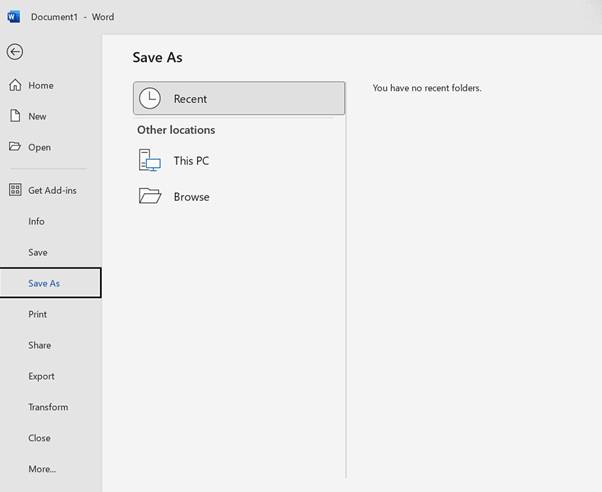
If you try to save a file on any Microsoft 365 Apps, you will not see the OneDrive or SharePoint locations to save the document.

 MVEUCTech
Leave a comment