OneDrive is Microsoft’s cloud storage service that allows users to store, sync, and share files securely across devices. It integrates seamlessly with Windows, Microsoft 365, and other Microsoft services, enabling real-time collaboration on documents, automatic backups, and easy access to files from anywhere.
Using a public kiosk device comes with its own set of challenges, especially when it comes to data security. If you keep OneDrive enabled on a shared computer, you could be putting sensitive information at risk.
To mitigate the security risk, one recommended approach is disabling the OneDrive sync.
When the OneDrive file sync is disabled, the following behaviour will occur:
- Users can’t access OneDrive from the OneDrive app and file picker.
- Packaged Microsoft Store apps can’t access OneDrive using the WinRT API.
- OneDrive doesn’t appear in the navigation pane in File Explorer.
- OneDrive files aren’t kept in sync with the cloud.
- Users can’t automatically upload photos and videos from the camera roll folder.
We will see on how to achieve the disabling OneDrive sync through Microsoft Intune.
Configurations in Microsoft Intune
Sign in to the Microsoft Endpoint Manager admin center.
Go to Devices > Windows > Configuration Profiles.
On Windows Configuration Profiles window, select Create Profile.
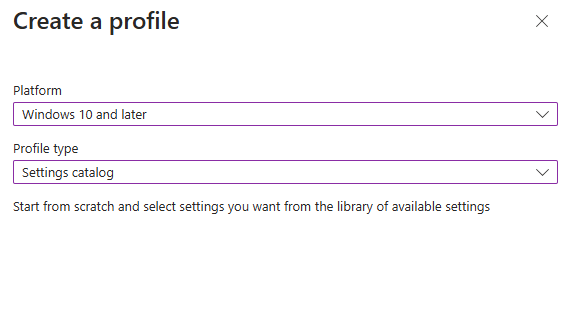
On the Create a Profile window, select Platform as Windows 10 and later. Select profile type as Settings catalog. Click Create.
On the Basics tab, specify the name of the profile like Block OneDrive File Sync , and add a profile description. Click Next.

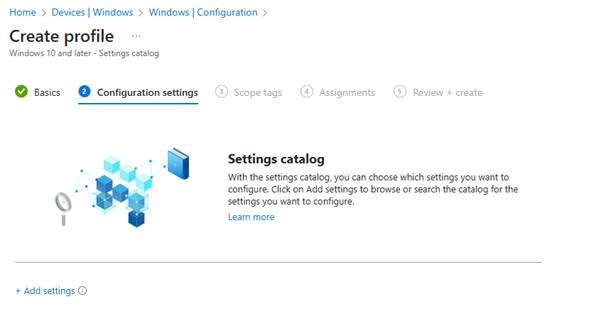
On the Configuration Settings section, under Settings Catalog, click Add Settings.
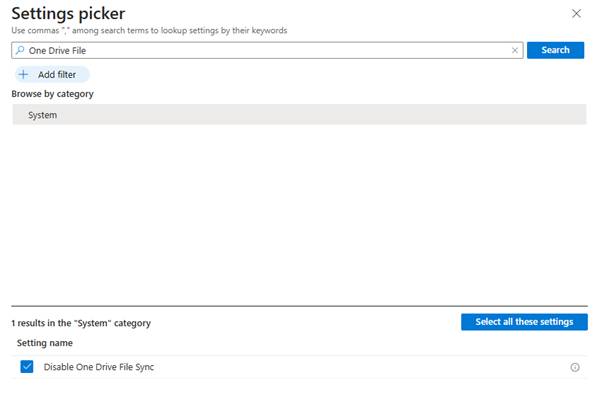
On the Settings picker window, type “One Drive File” in the search box and click Search. From the search results, select System. Now select Disable One Drive File Sync setting.
To disable the OneDrive file sync, configure the setting as Sync disabled.
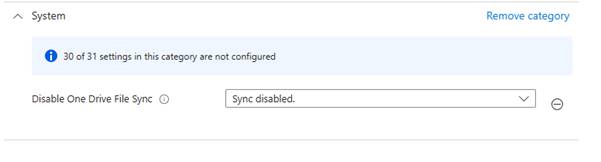
If you have specific scopes, select them; otherwise, leave it as Default in the scopes section and click Next.
In the Assignments window, choose the device group to target with this policy. Click Add groups and select a device group. Click Next.
In the Review + Create section, review all the settings configured and select Create.
Once policy created successfully, based on the device sync, these settings will be applied and that will block OneDrive file Sync. Users will not see the OneDrive in the file explorer and system tray.

 MVEUCTech
Leave a comment