In a world where personal and work lives are increasingly blended on digital devices, organizations face a common challenge: how to keep work devices truly focused on work. One simple but powerful step is to block personal Microsoft accounts on Windows devices.
In this blog, we’ll break down what it means to block Microsoft accounts, and how to configure it using Microsoft Intune.
What Does “Block Microsoft Accounts” Mean?
On a Windows device, users can sign in with either:
- A personal Microsoft account (like @outlook.com or @hotmail.com)
- A work or school account (like @company.com via Entra ID or domain login)
Blocking Microsoft accounts means preventing users from signing in with or adding personal Microsoft accounts on a device.
These accounts are typically used for services like:
- OneDrive (personal)
- Microsoft Store apps
- Xbox, Skype, and more
While convenient for personal use, these can introduce risks and distractions in a corporate or educational setting.
How to Block Microsoft Accounts Using Microsoft Intune
Sign in to the Microsoft Endpoint Manager admin center.
Go to Devices > Windows > Configuration Profiles.
On Windows Configuration Profiles window, select Create Profile.
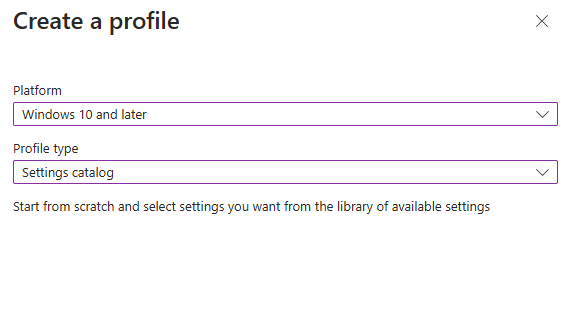
On the Create a Profile window, select Platform as Windows 10 and later. Select profile type as Settings catalog. Click Create.
On the Basics tab, specify the name of the profile like Disable Add or Logon with Microsoft Accounts , and add a profile description. Click Next.

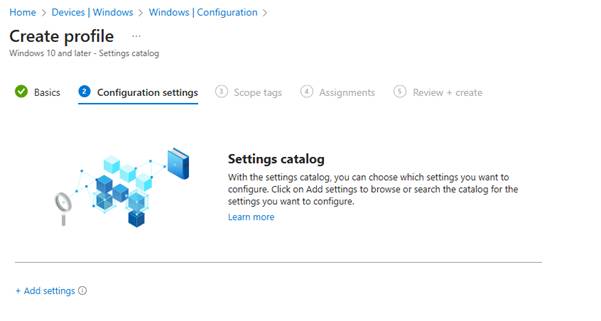
On the Configuration Settings section, under Settings Catalog, click Add Settings.
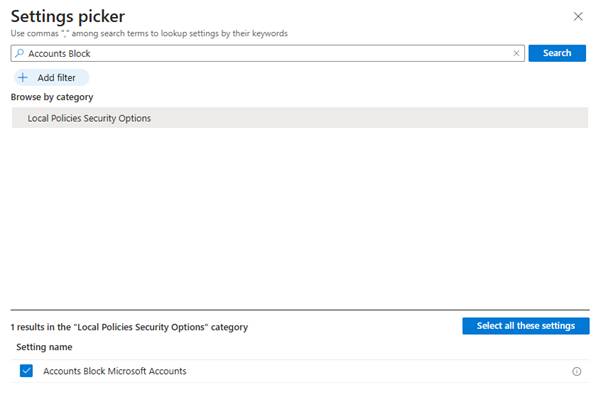
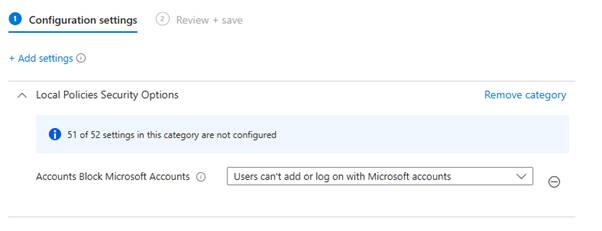
On the Settings picker window, type “Accounts Block” in the search box and click Search. From the search results, select Local Policies Security Options. Now select Accounts Block Microsoft Accounts setting.
This setting provides three different security restrictions as mentioned in below table.
| Restrictions |
| Disabled (users will be able to use Microsoft accounts with Windows). |
| Enabled (users can’t add Microsoft accounts). |
| Users can’t add or log on with Microsoft accounts. |
To disable add or log on with Microsoft accounts, select “Users can’t add or log on with Microsoft accounts” and click Next.
If you have specific scopes, select them; otherwise, leave it as Default in the scopes section and click Next.
In the Assignments window, choose the device group to target with this policy. Click Add groups and select a device group. Click Next.
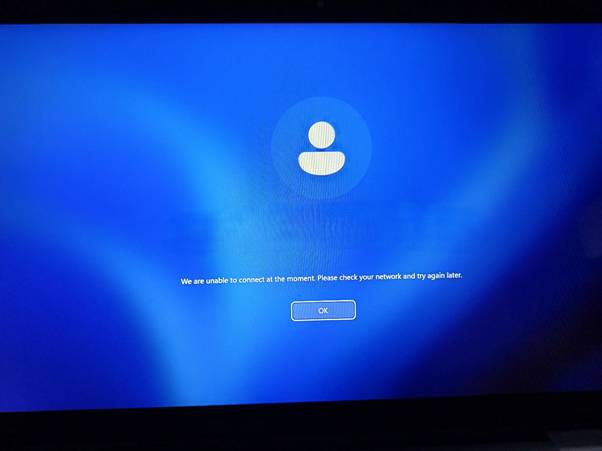
In the Review + Create section, review all the settings configured and select Create. Once the policy is created successfully, based on the device sync, these settings will be applied, and users will be blocked from using personal Microsoft accounts on a company’s device.

 MVEUCTech
Leave a comment