When managing Windows devices in a business or educational environment, it’s important to control not just what users can do, but also what they can see—especially in the Windows Settings app.
By restricting access to sensitive or unnecessary settings, organizations can prevent end users from accidentally altering configurations that may impact device functionality or security—such as network settings, account management, or privacy controls. This helps reduce the risk of misconfiguration, data leakage, and support incidents, while also simplifying the interface for users by removing clutter and distractions.
For frontline workers, students, or shared-use scenarios like kiosks, hiding non-essential settings enhances usability and ensures that devices are used strictly for their intended purposes. In this blog post, we’ll explain what PageVisibilityList is, and how you can configure it using Microsoft Intune to improve user experience and strengthen security.
What is PageVisibilityList?
PageVisibilityList is a Windows policy that allows to hide or show specific pages in the Windows Settings app (like Network, Accounts, Privacy, etc.).
With this setting, you can:
- Hide settings pages you don’t want users accessing
- Show only specific pages and block everything else
It works by targeting specific URI paths of pages in the Settings app. For example:
- settings:network hides the Network & Internet section
- settings:privacy-location hides just the Location privacy setting
How to Configure Hide Settings Items Using Intune
Sign in to the Microsoft Endpoint Manager admin center.
Go to Devices > Windows > Configuration Profiles.
On Windows Configuration Profiles window, select Create Profile.
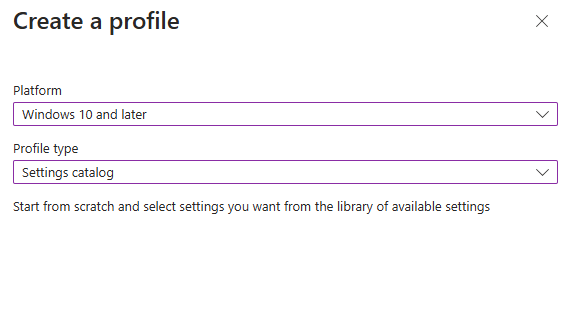
On the Create a Profile window, select Platform as Windows 10 and later. Select profile type as Settings catalog. Click Create.
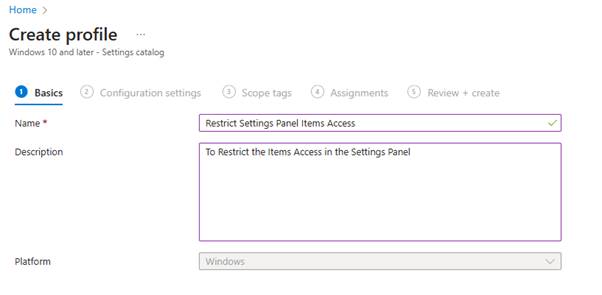
On the Basics tab, specify the name of the profile like Restrict Settings Panel Items Access , and add a profile description. Click Next.
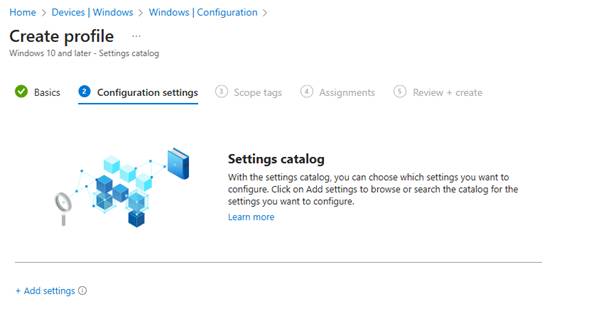
On the Configuration Settings section, under Settings Catalog, click Add Settings.
On the Settings picker window, type “page visibility” in the search box and click Search. From the search results, select Settings. Now select Page Visibility (User) setting.
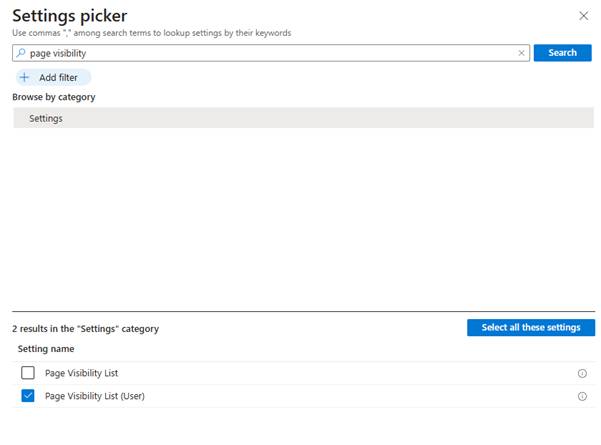
This policy has two modes: it can either specify a list of settings pages to show or a list of pages to hide. To specify a list of pages to show, the policy string must begin with “showonly:” (without quotes), and to specify a list of pages to hide, it must begin with “hide:“.
In my environment, I want to show only the following items on Settings windows.
| Configuration Items | Settings |
| Bluetooth | Bluetooth |
| Printers | Printers |
| USB | Usb |
| Windows Update | Windowsupdate windowsupdate-action |
In my environment, I want to display only the allowed items and hide the others. When you configure multiple items, they will be separated by semicolons as follows: “showonly: bluetooth;printers;usb;windowsupdate;windowsupdate-action”
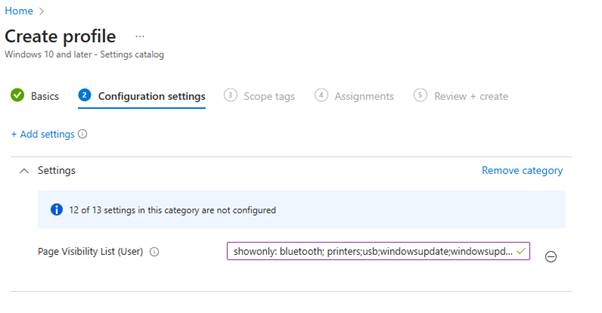
If you have specific scopes, select them; otherwise, leave it as Default in the scopes section and click Next.
In the Assignments window, choose the user group to target with this policy. Click Add groups and select a user group. Click Next.
In the Review + Create section, review all the settings configured and select Create.
Once the policy is created successfully, these settings will be applied based on device sync, and only allowed items will be displayed in Windows Settings.

 MVEUCTech
Leave a comment