In today’s fast-paced digital environments, minimizing user friction is key—especially when it comes to accessing workplace devices. With the rise of cloud identity solutions like Microsoft Entra ID, organizations are shifting toward centralized identity management for both security and convenience. One powerful feature that supports this approach is Windows Autologon using an Entra ID account.
Autologon enables a Windows device to automatically sign in a specified user account after a restart, without requiring manual input. When combined with an Entra ID-joined device, this feature becomes a streamlined solution for kiosk setups, digital signage, shared devices, or specialized workstations where user interaction is limited or unnecessary. But configuring Autologon with cloud-based Entra ID accounts introduces new considerations compared to traditional local or domain accounts.
In this post, we’ll explore the key things to watch out for when implementing it in a modern workplace environment.
Before configuring Autologon, consider examining the following settings in your environment, as they may lead to Autologon failure.
| Settings | Effect |
| Password and expiration policy | Password policy will trigger Exchange Active Sync that will block the Autologon. |
| Multi-Factor Authentication (MFA) Required | If Conditional Access forces MFA at login, AutoLogon cannot complete. |
| Interactive Sign-in Required | Policies that force consent (like terms of use, device compliance prompts) will block AutoLogon. |
| Windows Hello for Business | If WHfB is enforced without fallback password, device will not allow password-based login needed for AutoLogon. |
Autologon Vs Exchange Active Sync (EAS)
When the device has Exchange Active Sync (EAS) password restrictions enabled, the autologon feature will not function. This is an intentional behaviour.
| Situation | Effect on Autologon |
| EAS policy requires regular password changes | ❌ Breaks Autologon |
The table below lists categories and their settings that will trigger the EAS and affect the Autologon.
| Categories | Settings |
| Password Complexity and Expiration | RequirePassword MinPasswordLength RequireAlphaNumericPassword MaxPasswordAge PasswordExpiration |
| Device Timeout or Auto-Lock Requirements | MaxInactivityTimeDeviceLock DevicePasswordEnabled |
The password settings will be applied based on the different component configurations. They are, but not limited to
- Compliance Policy
- Microsoft Security Baseline
- Custom Configuration Profiles
In this article, I am covering a sample compliance policy, and we will look at how this will trigger the EAS-related registry settings.
Compliance Policy
In Microsoft Intune, a compliance policy for Windows 11 can enforce password complexity rules to ensure device security. These rules define how strong a password must be for a device to be considered compliant.
Key password complexity settings include:
- Required password type – e.g., Alphanumeric (must include letters and numbers)
- Minimum password length – e.g., 10 characters or more
- Minimum number of character sets – enforces use of uppercase, lowercase, numbers, and symbols
- Password expiration (days) – requires regular password changes
If a device does not meet these password requirements, it will be marked non-compliant, potentially restricting access to corporate resources through Conditional Access.
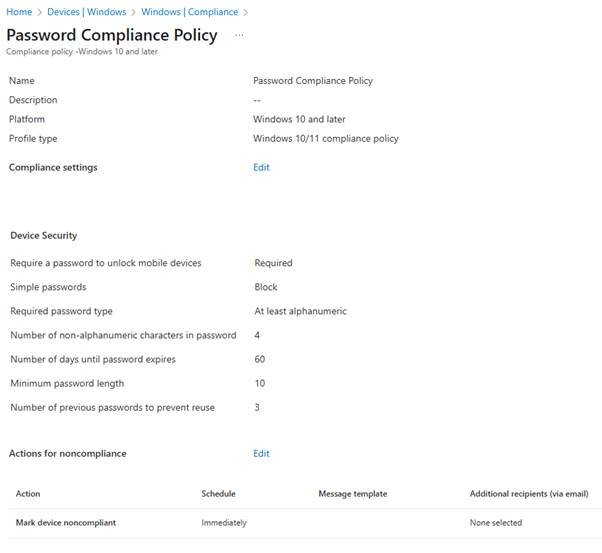
You need to make sure that the password settings are not getting applied either from Microsoft Security Baseline or any custom configuration profiles.
Registry Settings
Based on the assigned profiles, you will see the corresponding registry entries in both the EAS and Device Lock registry keys.
EAS Settings
Below are the registry keys that are related to EAS Settings.
HKEY_LOCAL_MACHINE\SYSTEM\CurrentControlSet\Control\EAS
HKEY_LOCAL_MACHINE\SYSTEM\CurrentControlSet\Control\EAS\Policies
HKEY_LOCAL_MACHINE\SYSTEM\CurrentControlSet\Control\EAS\Policies\MDM

Device Lock Settings
Below are the registry keys that are related to Device Lock Settings.
HKEY_LOCAL_MACHINE\SOFTWARE\Microsoft\PolicyManager\current\device\DeviceLock

To ensure successful Autologon configuration, it is necessary to remove both the EAS and Device Lock keys.
For successful Autologon, ensure that no compliance policies, Microsoft Security Baseline settings, or custom configuration profiles are in place that will enforce the password requirement.
AutoLogon and Microsoft Entra joined only computers
When a computer starts up, it may take some time until a network connection is established because of the following reasons:
- Configuration of a dynamics IP address through the DHCP configuration may necessitate the use of DHCP relays.
- Requirement to authenticate to a wireless network access point.
- Requirement to authenticate to wired network authentication services.
- Other network services are required to establish a connection between the client network and a network with Internet connectivity.
According to Microsoft, there are no settings available to delay the automatic logon for a Microsoft Entra ID user until network connectivity is established. The computer will try to log on but will fail since no server endpoint is available to process the logon request.
Now we will look how to delay the logon process until system get the required network connectivity.
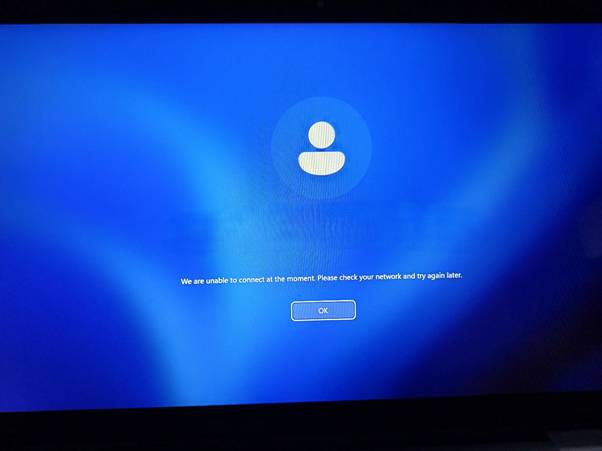
Run logon scripts synchronously
Synchronous startup scripts run one after another, and Windows waits for all scripts to finish before letting the user log in.
Asynchronous startup scripts run at the same time, and Windows does not wait — the user can log in while scripts keep running in the background.
By default, the logon scripts will run on Asynchronous mode only. The below table highlights some key points between two.
| Aspect | Synchronous | Asynchronous |
| Definition | Scripts run one after another. Each script must complete before the next one starts and before the user can log in. | Scripts are all triggered at the same time. Scripts run independently, and Windows does not wait for them to finish before allowing login. |
| User Login Behaviour | Login is delayed until all startup scripts finish running. | Login is not delayed; scripts keep running in the background while the user logs in. |
| Control | Offers better control and predictable order — useful if scripts depend on each other. | Less control over order and timing. If scripts need to finish before user action, async could cause problems. |
| Performance | Slower login experience if scripts are long-running. | Faster login experience, but possible risks if scripts aren’t done by the time the user needs them. |
| Intune / GPO Setting Name | Always wait for the network at computer startup and logon (Startup scripts run synchronously) | No wait setting needed — default behaviour. |
So, to make sure the logon scripts are running successfully, we need to configure the required settings to enable the startup scripts to run synchronously.
How to enable the startup scripts to run synchronously using Microsoft Intune
Sign in to the Microsoft Endpoint Manager admin center.
Go to Devices > Windows > Configuration Profiles.
On Windows Configuration Profiles window, select Create Profile.
On the Create a Profile window, select Platform as Windows 10 and later. Select profile type as Settings catalog. Click Create.
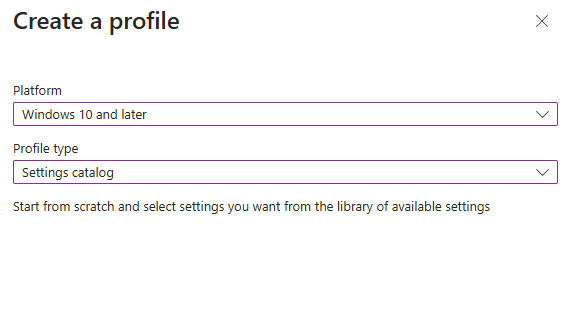
On the Basics tab, specify the name of the profile like Enable the startup scripts to run synchronously , and add a profile description. Click Next.

On the Configuration Settings section, under Settings Catalog, click Add Settings.
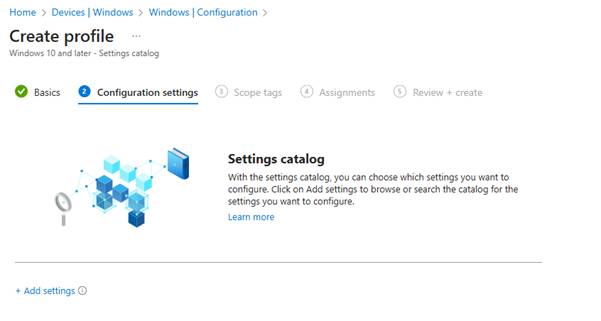
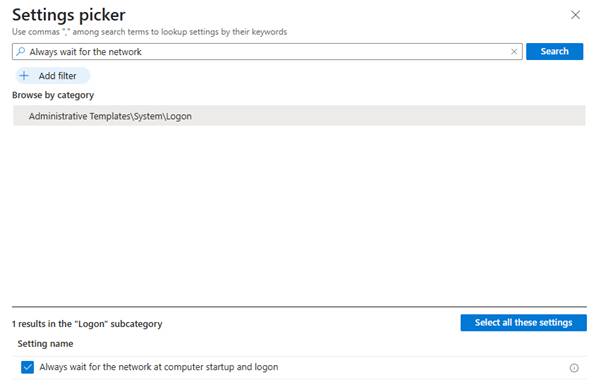
On the Settings picker window, type “Always wait for the network” in the search box and click Search. From the search results, select Always wait for the network at computer startup and logon Options.
Enable the policy setting to run the logon scripts synchronously.
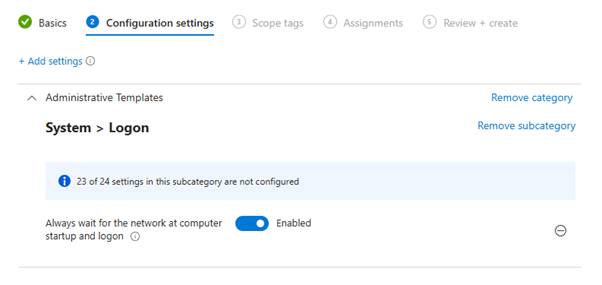
If you have specific scopes, select them; otherwise, leave it as Default in the scopes section and click Next.
In the Assignments window, choose the device group to target with this policy. Click Add groups and select a device group. Click Next.
In the Review + Create section, review all the settings configured and select Create.
Once the policy is created successfully, based on the device sync, these settings will be applied, and the logon scripts will get processed synchronously.
Note: You can disable the “Run startup scripts asynchronously“ setting, which is equivalent to the above settings.
Thanks to Joey Verlinden for his blog on Autologon https://www.joeyverlinden.com/entra-id-joined-kiosk-or-autologon-device-on-a-budget/ and specifically calling out the network watcher that will help to wait for the network before logon.

 MVEUCTech
Leave a comment