In this article, we will explore Microsoft Defender for Cloud Apps, focusing on its initial setup, baseline configuration, and key requirements.
Introduction
Microsoft Defender for Cloud Apps is implemented as a Cloud Access Security Broker (CASB), providing visibility into user and application activity within Microsoft 365. It enables the detection of suspicious behaviour, supports investigation of potential security incidents, and facilitates the application of remediation controls where required.
Defender for Cloud Apps Portal
Microsoft Defender for Cloud Apps is available inside the Microsoft Defender portal https://security.microsoft.com

Figure 1 Cloud Apps in Microsoft Defender Portal
Data Collection by Defender for Cloud Apps
Microsoft Defender for Cloud Apps gathers data from the configured cloud applications and data sources. This collection includes:
- Network data
- OAuth app configuration and usage
- Audits on cloud app usage by users and other apps
- File metadata and content
- System settings and policies
- User and group configurations
Data Storage Location
Defender for Cloud Apps operates in the Microsoft Azure data centers in the following geographical regions:
| Customer provisioning location | Data storage location |
| Customers whose tenants are provisioned in the United States | United States |
| Customers whose tenants are provisioned in the European Union or the United Kingdom | The European Union or the United Kingdom, depending on service availability. |
| Customers whose tenants are provisioned in any other region | The United States and/or a data center in the region that’s nearest to the location of where the customer’s Microsoft Entra tenant has been provisioned. |
Table 1 Data Storage Location
Find the Location
Defender for Cloud Apps tenant location in the Microsoft Defender portal can be found in Settings > Cloud Apps > About > Region

Figure 2 Data Location
Data Retention
Data from Microsoft Defender for Cloud Apps is retained for up to 180 days, and is visible across the portal.
Data Sharing
Defender for Cloud Apps shares data, including customer data, with other Microsoft products that the customer has licensed.
- Microsoft Defender
- Microsoft Defender for Cloud
- Microsoft Sentinel
- Microsoft Defender for Endpoint
- Microsoft Security Exposure Management
- Microsoft Purview
- Microsoft Entra ID Protection
Network Requirements
List of URLs and IP addresses that are required for Microsoft Defender for Cloud Apps can be found at https://learn.microsoft.com/en-us/defender-cloud-apps/network-requirements
Required Role to complete the Setup
To configure Defender for Cloud Apps, you need to have at least Security Administrator rights in Microsoft Entra ID or Microsoft 365.
Dependency: Entra ID Applications
Microsoft Defender for Cloud Apps relies on specific Microsoft Entra ID applications to operate correctly. Do not disable these applications within Microsoft Entra ID.
- Microsoft Defender for Cloud Apps – APIs (or API Connectors (1st Party)) (ID: 972bb84a-1d27-4bd3-8306-6b8e57679e8c)
- Microsoft Defender for Cloud Apps – Customer Experience (ID: ac6dbf5e-1087-4434-beb2-0ebf7bd1b883)
- Microsoft Defender for Cloud Apps – Information Protection (ID: 9ba4f733-be8f-4112-9c4a-e3b417c44e7d)
- Microsoft Defender for Cloud Apps – MIP Server (ID: 0858ddce-8fca-4479-929b-4504feeed95e)
- Microsoft Defender for Cloud Apps – Data Loss Prevention – SPO (ID: 71559765-2fa9-4207-b59f-a8bd85269d4a)
Defender for Cloud Apps environment Setup
Setting up Microsoft Defender for Cloud Apps is simple and friendly! You start by entering your organisation and environment details. Then, you can define your managed domains to easily track your internal users. If you’d like, you can also include your company logo to personalise your setup—making it feel even more like your own space.

Figure 3 Defender for Cloud Apps environment Details
Notifications
Templates and Sender
Defender for Cloud Apps notifications are sent by a pre-configured email ID, no-reply@cloudappsecurity.com
Microsoft deprecated the custom email settings feature.
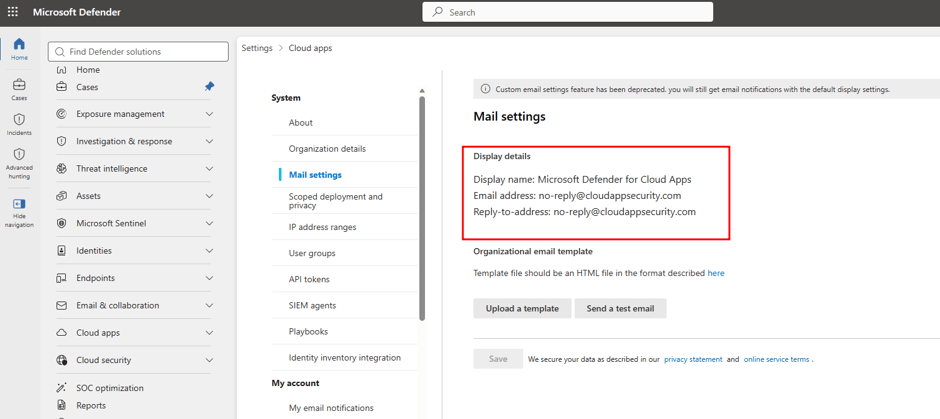
Figure 4 Cloud Apps Email settings
Admin Notifications
Admin notifications specific to Defender for Cloud Apps can be set up in the Microsoft Defender portal under the Microsoft Defender XDR Email notifications section. Presently, the notifications area includes three types: Incidents, Actions, and Threat Analytics.
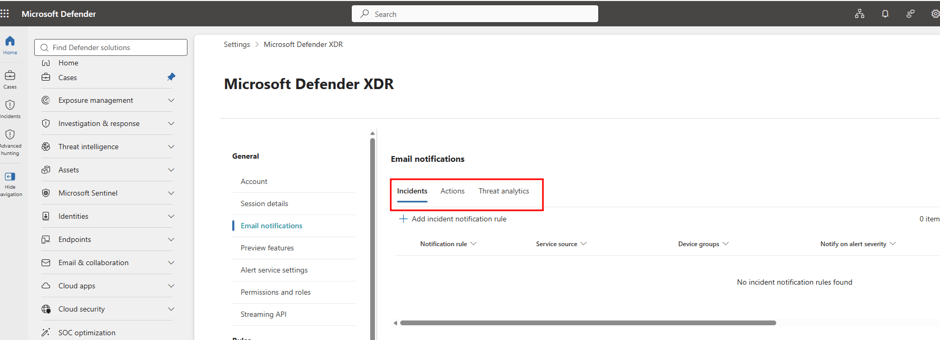
Figure 5 XDR Email Notifications
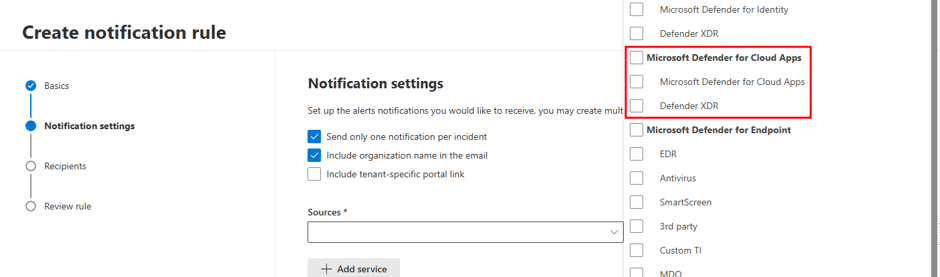
Figure 6 Incident Notifications Settings
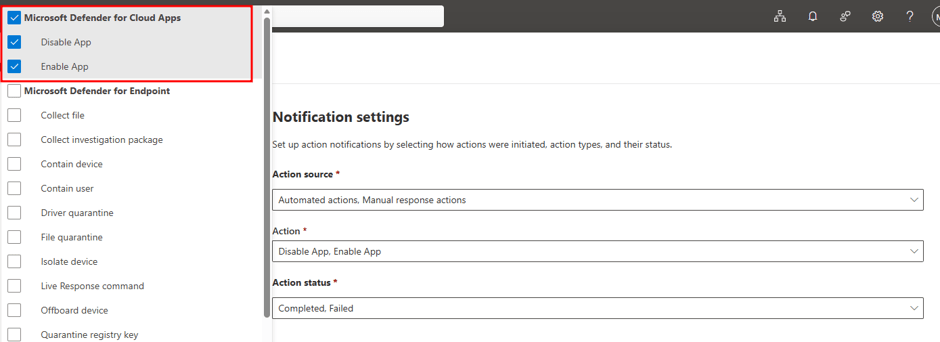
Figure 7 Actions Notifications Settings
Connect Apps
To enable instant visibility, protection, and governance for the necessary applications, they must be linked with Defender for Cloud Apps via App Connectors. Once you establish a connection with an application, you will gain enhanced visibility, enabling you to investigate activities, files, and accounts associated with the applications within your cloud environment.
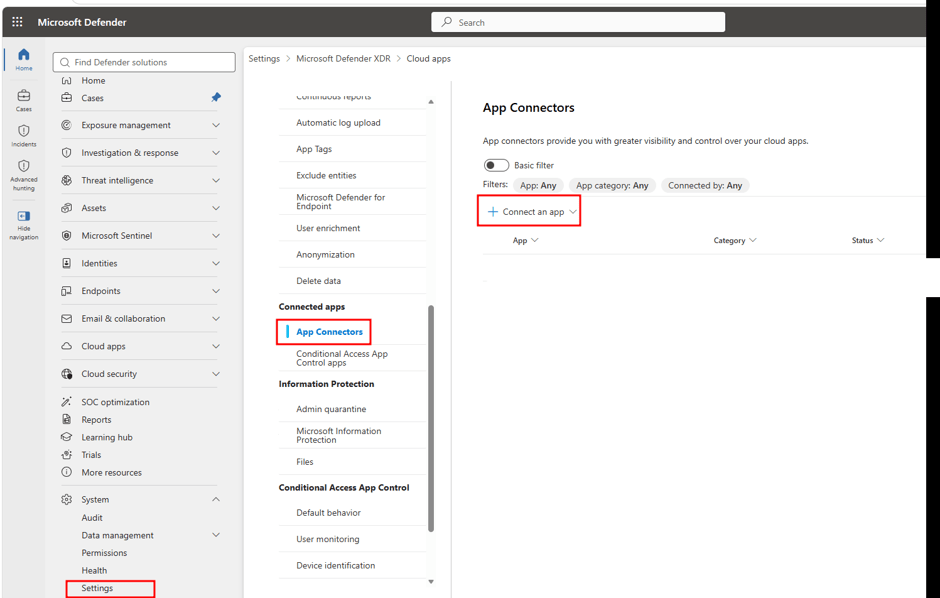
Figure 8 App Connectors for Cloud Apps
File Monitoring
Enabling file monitoring in Microsoft Defender for Cloud Apps allows the platform to scan, classify, and protect sensitive files stored in connected cloud services (such as SharePoint, OneDrive, or Google Drive). Its main goal is to enforce data loss prevention (DLP), identify risks of external or public data sharing, and detect compliance issues or malware within cloud files.
To enable protection for Microsoft 365 files, you must enable Defender for Cloud Apps file monitoring.
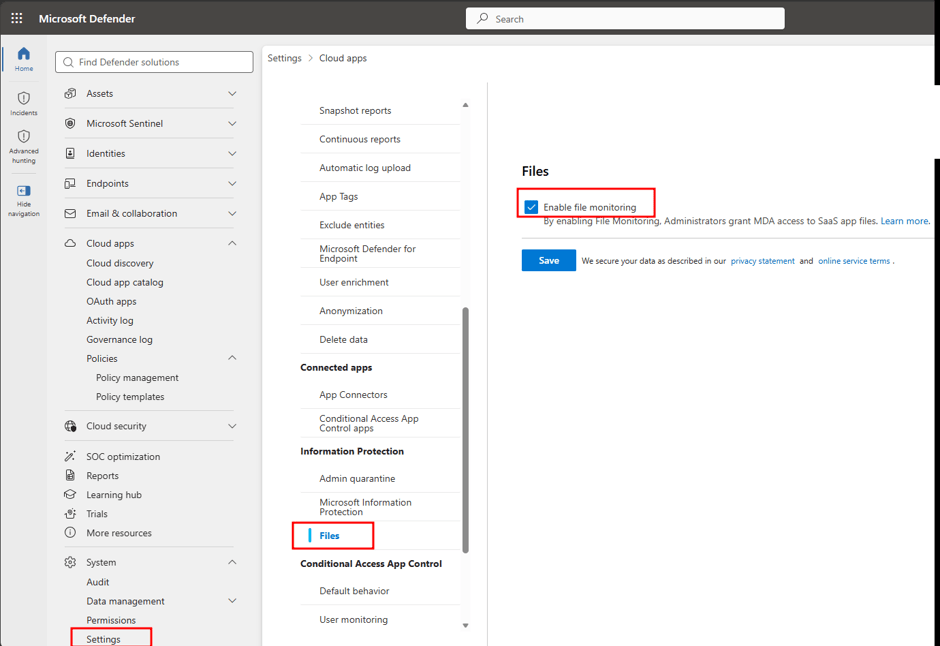
Figure 8 Enable File Monitoring



Leave a Reply