This article discusses restricted user experience, the configuration properties for Kiosk mode, and best practices.
Microsoft states that an assigned access restricted user experience allows users to run one or more apps directly from the desktop. Kiosk users see a tailored Start menu displaying only the tiles of permitted apps. This method enables the configuration of a locked-down experience suitable for various account types. A multi-app kiosk is ideal for devices shared among users.
Best Practices for Assigned Access Configuration
The table below outlines several essential best practice profiles for a kiosk device with a restricted user experience.
| Best Practice Profiles | Reference Links |
| Disable Microsoft 365 Apps Connected Experiences | https://mveuctech.com/2025/04/01/disable-microsoft-365-apps-connected-experiences/ |
| Disable OneDrive File Sync | https://mveuctech.com/2025/04/02/disable-onedrive-file-sync/ |
| Limit Folder Location Access | https://mveuctech.com/2025/04/04/limit-folder-location-access/ |
| Hide Windows Security Notification from System Tray | https://mveuctech.com/2025/04/04/hide-windows-security-notification-from-system-tray/ |
| Disable Add or Logon with Microsoft Accounts | https://mveuctech.com/2025/04/05/disable-add-or-logon-with-microsoft-accounts/ |
| Hide Windows Settings Items | https://mveuctech.com/2025/04/05/hide-windows-settings-items/ |
| Windows Autologon with Microsoft Entra ID Account | https://mveuctech.com/2025/04/26/windows-autologon-with-microsoft-entra-id-account/ |
In my previous post, I covered the details of the key properties that will be used in the restricted assigned access profile.
Application Control (App Locker) in Restricted Experience
Application Control is a function found in the Restricted Experience Assigned Access mode in Windows that limits users to designated applications. This feature boosts security by establishing a controlled and limited-use environment.
This complicates matters regarding dependencies. You must include all dependencies in the allowed apps list; otherwise, the application will not launch.
Restricted User Experience Assigned Access Configuration Properties
Below are the elements that will be used in the XML configuration file.
- Assigned Access Configuration
- Profiles
- Configs
AssignedAccessConfiguration
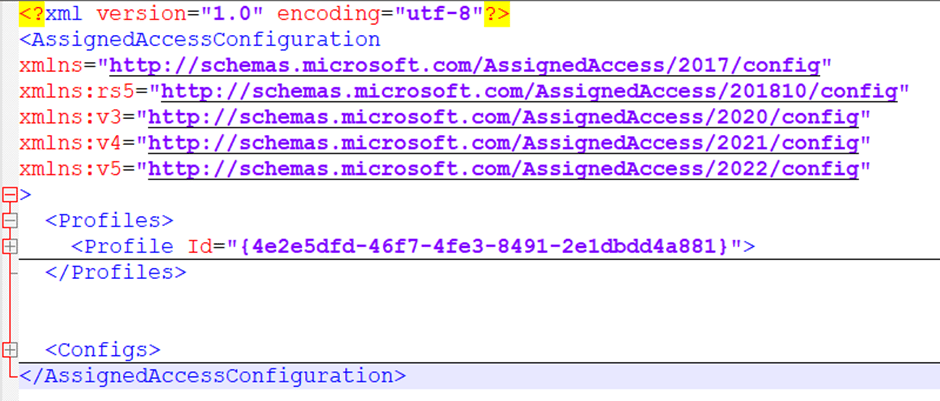
The <AssignedAccessConfiguration> element within an XML file defines the configuration for Assigned Access on Windows devices. It includes all the schemas used with the XML, Profiles, and Configs.
The image below lists high-level elements used within the XML file.
Profiles
A configuration file may include multiple profiles marked by a unique Profile ID. Profiles contain various elements, such as the profile ID, all apps list, start menu layout, taskbar, and more, that assist in deploying secured Kiosk devices.
Profile ID
Unique ID to distinguish a profile. By using a GUID generator, we will generate a GUID ID.

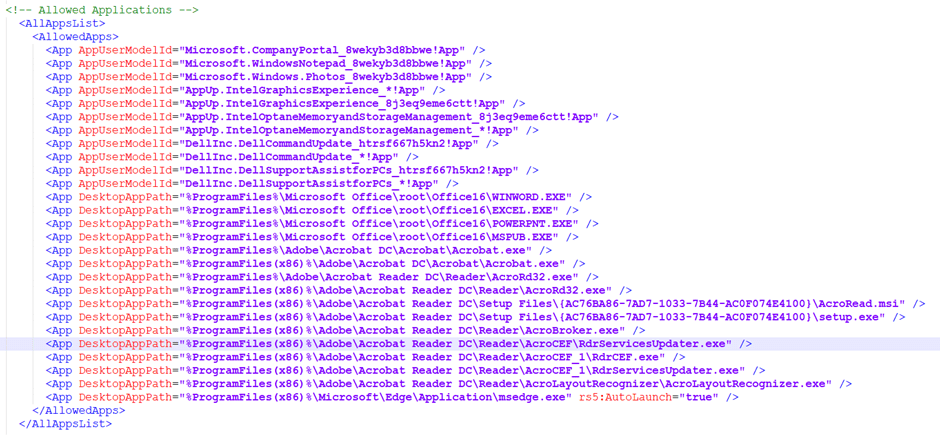
All App List
Permitted applications need to be set up in the AllAppList section. These allowed apps will function as an App Control, meaning all other applications will be denied access. This measure will help enhance security.
Another helpful element within the profile is the start menu layout. Use Export-StartLayout -Path “C:\Layouts\LayoutModification.json” to export the customised start menu from a test device, then use those values within the start pins configuration.

Show taskbar provides the ability to show the taskbar always or hide it when not in use.

Configs
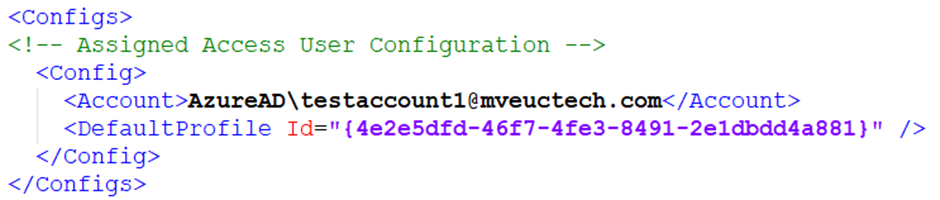
Config elements define user account details in the configuration file. The settings specified in this XML file will apply solely to this particular account and will not affect other accounts on the device.
In my previous post, I discussed the various user account types applicable to the profile XML file. In this instance, I’m utilising the Entra ID account for an Entra-Join device.
Full Configuration File
The complete restricted assigned access configuration XML file is available on my GitHub repository.
Logs and Registry
The assigned Access event viewer logs can be found in the following location.
Applications and Services Logs
└─ Microsoft
└─ Windows
└─ AssignedAccess
The following registry keys contain the Assigned Access configurations:
- HKLM\Software\Microsoft\Windows\AssignedAccessConfiguration
- HKLM\Software\Microsoft\Windows\AssignedAccessCsp
The following registry key contains the configuration for each user with an Assigned Access policy:
- HKCU\SOFTWARE\Microsoft\Windows\AssignedAccessConfiguration

 MVEUCTech
Leave a comment